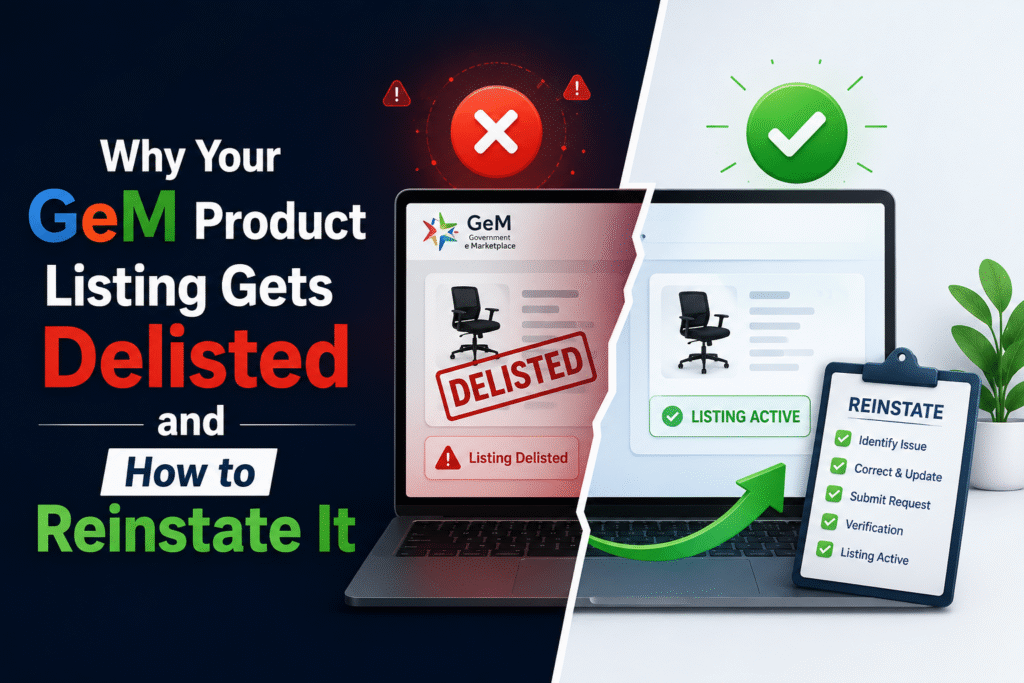
You uploaded your product on GeM, filled in all the details, and waited for orders. Then one day, the listing is gone. No warning. No order. Just a delisted product sitting in your seller dashboard.
This happens to thousands of GeM sellers every month. The good news is that most delistings are fixable. But you need to know why it happened before you can fix it.
This post explains every major reason GeM delists a product and exactly what you need to do to bring it back.
What Does “Delisted” Mean on GeM?
A delisted product is a listing that has been removed from GeM’s public catalogue. Buyers cannot search for it, add it to their cart, or place orders against it.
Delisting is different from deactivation. When you deactivate a product, you chose to take it down. When GeM delists a product, the platform removes it, usually because something in your listing violated a rule or triggered a quality flag.
Common Reasons GeM Delists a Product Listing
1. Product Does Not Match the Category
GeM has a strict product taxonomy. If you list a UPS device under “Computer Accessories” instead of “Power Backup and UPS,” the system or a quality reviewer may flag it for mismatch.
Example: A seller listed industrial safety gloves under “Sports Gloves.” The listing was delisted within 72 hours because the HSN code did not match the chosen category.
2. Incorrect or Missing HSN Code
Every product on GeM must carry the correct 6 or 8-digit HSN code. If your HSN code does not match the product category, GeM will remove the listing. This is one of the most common reasons for delisting.
3. Brand Name Mismatch or Unverified Brand
If you list a product under a brand name that is not registered or verified on GeM, the listing gets flagged. This also applies when the brand name in your product title does not match the OEM certificate or trademark proof you uploaded.
Example: A seller listed products under “TechBrands India” but their OEM certificate showed the registered name as “Tech Brands Pvt. Ltd.” The mismatch caused an automatic delisting.
4. Poor or Misleading Product Images
GeM requires original, clear, and accurate images. If your images are stock photos that misrepresent the product, contain watermarks, have text overlays that make false claims, or were copy-pasted from another seller’s listing, GeM will delist the product.
5. Specifications Do Not Match the Product
If the technical specifications you listed do not match the actual product, GeM removes the listing. This often happens when sellers copy specifications from a similar product without verifying accuracy.
6. Duplicate Listing
GeM does not allow two listings for the same product from the same seller. If the system detects a duplicate, it removes the newer listing and may flag your account.
7. Non-Compliance with Make in India or BIS Requirements
Certain product categories on GeM require BIS certification or compliance with the Make in India mandate. If your product falls under such a category and you have not uploaded the required certificates, GeM delists the listing.
8. Outdated or Expired Certifications
If a product requires periodic certification renewal and yours has expired, GeM will delist the product. This is common in medical equipment, electronics, and food-related categories.
9. Pricing Anomaly
If your product price is significantly higher or lower than the market average on GeM, the system may flag it as a pricing anomaly and suspend or delist the listing pending review.
10. Policy Violation During Audit
GeM conducts regular catalogue audits. During these audits, listings that do not meet current standards, even ones that were approved earlier, may get delisted.
Quick Reference: Reasons and What to Fix
| Delisting Reason | What GeM Checks | What You Need to Fix |
|---|---|---|
| Category mismatch | HSN code vs. category mapping | Relist under correct category with matching HSN |
| Brand mismatch | OEM certificate vs. brand name in listing | Upload updated OEM certificate with exact brand name |
| Poor images | Image quality, watermarks, accuracy | Upload original, clear, and product-accurate images |
| Wrong specifications | Technical specs vs. product reality | Rewrite specs to match actual product |
| Expired certificates | Certificate validity date | Renew certificate and re-upload |
| Duplicate listing | Product ID, name, brand match | Remove the duplicate and keep one clean listing |
| BIS non-compliance | Category-specific certification | Obtain BIS or other required certification and upload |
| Pricing anomaly | Price vs. market range on GeM | Revise price to align with prevailing market rates |
How to Check Why Your Product Was Delisted?
Before you take any action, find the reason. Here is how.
Log in to your GeM Seller Dashboard. Go to “My Products” and filter by “Delisted.” Click on the delisted product. Look for a remark or reason in the listing details. GeM sometimes sends an email notification to your registered email with the reason. If no reason is visible in the dashboard, raise a grievance ticket through the GeM Support Portal at https://sam.gem.gov.in.
Knowing the exact reason saves you time. Do not guess and relist blindly. The same listing will get delisted again if the root cause is not fixed.
Step-by-Step Process to Reinstate a Delisted GeM Product
Step 1: Read the Delisting Reason Carefully
Log in, go to the product, and note the exact remark. If GeM says “category mismatch,” your fix is different from “expired certificate.”
Step 2: Correct the Issue at the Source
Fix the problem before touching the listing. If your OEM certificate is expired, renew it first. If your images are the issue, prepare new, clean, original photographs. Do not re-upload the same content that got you delisted.
Step 3: Update or Relist the Product
In some cases, GeM allows you to edit the existing listing and resubmit for approval. In other cases, especially for category mismatches, you may need to delete the old listing and create a new one in the correct category.
Step 4: Submit a Reinstatement Request
If the product does not automatically go back to “Active” after editing, use the GeM grievance portal to raise a reinstatement request. Attach all supporting documents: corrected certificate, updated images, or brand authorization letter as applicable.
Step 5: Follow Up Within 7 Days
GeM support typically responds within 7 working days. If you do not hear back, follow up on the same ticket. Do not raise a new ticket for the same issue.
Real Example: How a Seller Got a Delisted Product Back in 5 Days
A stationery seller in Jaipur had their spiral notebook listing delisted because the HSN code entered was 4820 (registers and notebooks) but the category selected was “Office Stationery Accessories,” which required HSN 4820 to be mapped under a different subcategory.
The seller checked the GeM HSN mapping guide, corrected the category to “Paper Stationery,” verified the HSN code match, and resubmitted the listing. Within 5 working days, the listing was live again and started receiving orders.
The fix took less than 20 minutes once the actual problem was identified.
What Happens to Pending Orders When a Product Is Delisted?
If a buyer had already placed an order before the delisting, that order remains active and you must fulfill it. The delisting only stops new buyers from placing orders. Existing bid participation, if your product was part of an active bid, may get cancelled depending on the stage of the bid.
Can a Delisted Product Affect Your Seller Rating?
Yes, it can. If a product was delisted due to a policy violation and you had pending orders that got cancelled as a result, your Order Rejection Rate goes up. A high rejection rate directly impacts your seller rating on GeM, which affects your visibility in search results.
This is why it is better to proactively check your listings every month rather than wait for buyers to report issues or for GeM to trigger an audit.
Frequently Asked Questions:
Q1. How long does GeM take to reinstate a delisted product?
If you fix the issue and resubmit, GeM usually reviews the listing within 5 to 7 working days. Complex cases involving certificate verification may take up to 15 days.
Q2. Can I relist the same product immediately after delisting?
You can relist it only after fixing the issue that caused the delisting. Relisting without making corrections will result in the same outcome.
Q3. Will my product get delisted if I do not update my price for a long time?
Not automatically. But if your price deviates significantly from comparable listings on GeM, the system may flag it. GeM recommends keeping prices updated and competitive.
Q4. Is there a limit to how many times a product can be delisted and reinstated?
GeM does not publish a fixed limit, but repeated delistings of the same product for the same reason can result in the product being permanently removed and your account being flagged for review.
Q5. Can a buyer report my listing for delisting?
Yes. Buyers can report a listing if they feel the product does not match its description, the images are misleading, or the specifications are wrong. GeM reviews such reports and may delist the product pending verification.
Q6. What documents are usually needed for reinstatement?
The documents depend on the reason for delisting. Common documents include the OEM certificate, brand authorization letter, BIS or ISI certificate, product images, and updated HSN code mapping proof.
Q7. Does GeM send a notification before delisting a product?
Not always. Some delistings happen automatically without a prior warning. GeM may send an email after the fact. This is why checking your seller dashboard regularly is important.
Q8. What is the difference between a suspended and a delisted product on GeM?
A suspended product is temporarily blocked, often pending verification or compliance. A delisted product has been fully removed from the catalogue. Suspension is usually the first step; repeated non-compliance leads to delisting.
Discover more from
Subscribe to get the latest posts sent to your email.