
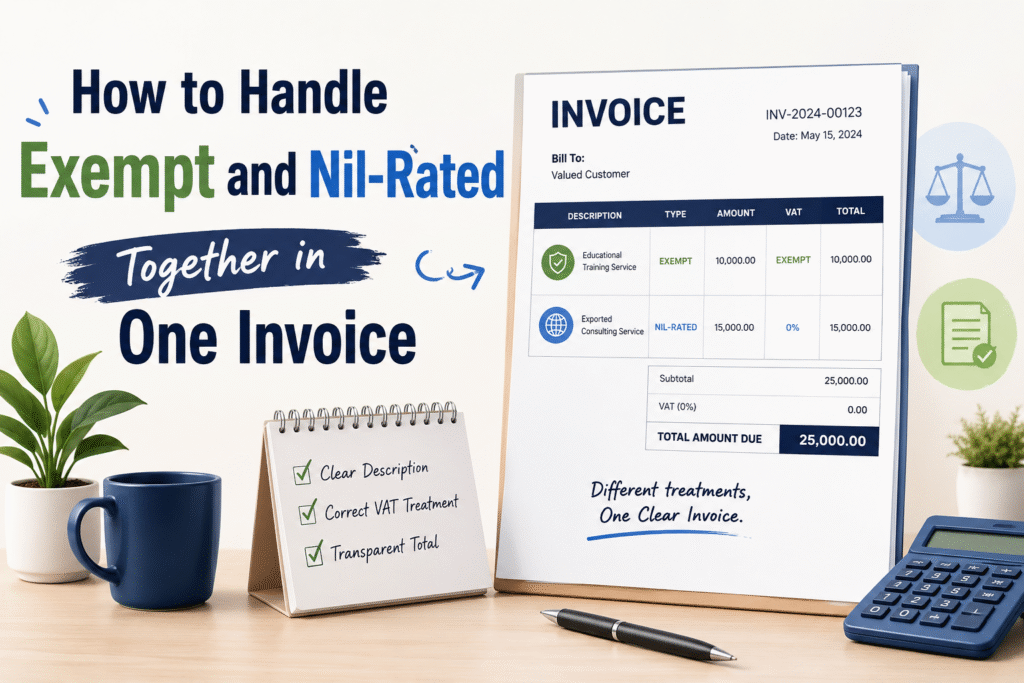
When your business sells both exempt goods and nil-rated goods, generating a correct GST invoice becomes tricky. Many business owners treat these two as the same thing. They are not. And mixing them up in TallyPrime without the right setup leads to GSTR-1 errors, mismatched returns, and unnecessary notices from the GST portal.
This guide will walk you through what these two categories mean, how they differ, and how to record them correctly in a single invoice in TallyPrime.
What Is the Difference Between Exempt and Nil-Rated?
Both exempt and nil-rated supplies attract zero GST. But under GST law, they are treated differently.
| Basis | Nil-Rated | Exempt |
|---|---|---|
| GST Rate | 0% (listed in GST schedule) | No GST applicable by notification |
| ITC on Purchases | Not available | Not available |
| Reported in GSTR-1 | Yes, under Table 8 | Yes, under Table 8 |
| Example | Salt, grains, bread | Fresh fruits, healthcare services |
| Reversal of ITC Required | Yes (if mixed with taxable) | Yes (if mixed with taxable) |
The key point is this: nil-rated items are listed under the GST rate schedule with a 0% rate. Exempt items are kept outside the GST net entirely through a government notification. Both require ITC reversal when sold alongside taxable goods.
Why This Matters in a Single Invoice?
Suppose you run a grocery wholesale business. You sell packaged flour (nil-rated), fresh vegetables (exempt), and packaged snacks (taxable at 5%). When all three appear on one invoice, TallyPrime needs to know which item falls in which category. If the ledger setup is wrong, the tax calculation breaks and your GSTR-1 report shows errors or uncertain transactions.
How TallyPrime Handles This?
TallyPrime uses stock item configuration and ledger mapping to determine how a sale is reported. For exempt and nil-rated items to sit correctly on one invoice, each item must be mapped to the right GST nature.
There are three GST natures in TallyPrime that matter here:
Nil Rated — Use this for goods that carry a 0% GST rate under the GST schedule.
Exempt — Use this for goods that are outside the GST net by notification.
Taxable — Use this for goods that carry a standard GST rate like 5%, 12%, 18%, or 28%.
TallyPrime will then split the invoice value automatically into these categories when generating the GSTR-1 report.
Step-by-Step: Setting Up Stock Items Correctly:
Before creating the invoice, make sure each stock item is configured properly.
Go to Gateway of Tally → Masters → Stock Items → Alter.
Open the stock item you want to configure. Under the GST Details section, set the Taxability field correctly.
For a nil-rated item like salt, set Taxability to Nil Rated and leave the GST rate as 0%.
For an exempt item like fresh vegetables, set Taxability to Exempt.
For a taxable item like packaged snacks, set Taxability to Taxable and enter the correct GST rate.
Save each item after making changes.
Creating the Invoice With Mixed Items
Once the stock items are set up correctly, creating the invoice is straightforward.
Go to Gateway of Tally → Vouchers → Sales.
Add all three items to the same invoice — the nil-rated item, the exempt item, and the taxable item. TallyPrime will automatically apply tax only to the taxable item. The nil-rated and exempt items will show zero tax.
When you look at the invoice breakup, you will see the taxable value split into three rows: taxable amount, nil-rated amount, and exempt amount. This is exactly what the GST portal expects.
Example to Make This Clear
Ramesh runs a grocery wholesale shop in Delhi. He raises one invoice to a buyer in the same state.
He sells:
10 kg of salt worth Rs. 200 (nil-rated)
5 kg of fresh tomatoes worth Rs. 150 (exempt)
2 packets of chips worth Rs. 100 (taxable at 5%)
TallyPrime calculates:
GST on chips = Rs. 5 (CGST Rs. 2.50 + SGST Rs. 2.50)
GST on salt = Rs. 0
GST on tomatoes = Rs. 0
Total invoice value = Rs. 455
In GSTR-1, this invoice will appear with Rs. 100 as taxable supply, Rs. 200 as nil-rated supply, and Rs. 150 as exempt supply. All three values are reported separately in Table 8.
What Happens in GSTR-1?
TallyPrime maps this invoice data to Table 8 of GSTR-1, which is specifically for nil-rated, exempt, and non-GST supplies. This table asks for the total value of these supplies split by type. If your stock items are set up correctly, TallyPrime fills this automatically when you generate the GSTR-1 report.
If your items are not set up with the right taxability, TallyPrime either shows zero across all columns or throws an uncertain transactions error. Both outcomes cause problems during filing.
ITC Reversal: What You Need to Know:
If your business sells a mix of taxable and exempt or nil-rated goods, you cannot claim full Input Tax Credit on your purchases. You must reverse a portion of ITC proportional to the exempt and nil-rated turnover.
This is done under Rule 42 and Rule 43 of GST Rules. In TallyPrime, you record this reversal through a journal voucher at the end of the month. This is a separate task from invoice creation but directly connected to how you classify your sales.
Common Mistakes to Avoid
Using a single ledger for both exempt and nil-rated items is the most common error. TallyPrime treats them differently in reports, so using the wrong ledger leads to wrong classification in GSTR-1.
Leaving the taxability field blank in stock item setup is another common issue. When TallyPrime does not find a taxability setting, it either defaults to taxable or skips the item in the GST report.
Not checking Table 8 before filing is also a mistake many businesses make. Always preview the GSTR-1 report in TallyPrime before exporting the JSON to confirm that nil-rated and exempt values are showing up correctly.
Frequently Asked Questions:
Q1. Can I put exempt and nil-rated items on the same invoice as taxable items?
Yes. TallyPrime supports mixed invoices. As long as each stock item has the correct taxability setting, the invoice and the GSTR-1 report will both be accurate.
Q2. Do I need separate ledgers for exempt and nil-rated sales?
Yes. Using separate sales ledgers for taxable, nil-rated, and exempt helps avoid misclassification in GSTR-1 Table 8. It also makes reconciliation easier at month end.
Q3. Is ITC available on purchases used for exempt or nil-rated supply?
No. ITC on inputs used exclusively for exempt or nil-rated supply is not available. If inputs are used for both taxable and exempt supply, you need to reverse the proportionate ITC under Rule 42.
Q4. What if I accidentally mark a nil-rated item as exempt in TallyPrime?
The invoice total will not change since both carry zero tax. But the classification in GSTR-1 Table 8 will be wrong. Correct it in the stock item master and regenerate the report before filing.
Q5. Does this apply to services as well?
Yes. Healthcare and educational services that are exempt follow the same logic. Set the service item taxability to Exempt in TallyPrime and it will be handled the same way as exempt goods.
Discover more from
Subscribe to get the latest posts sent to your email.


