
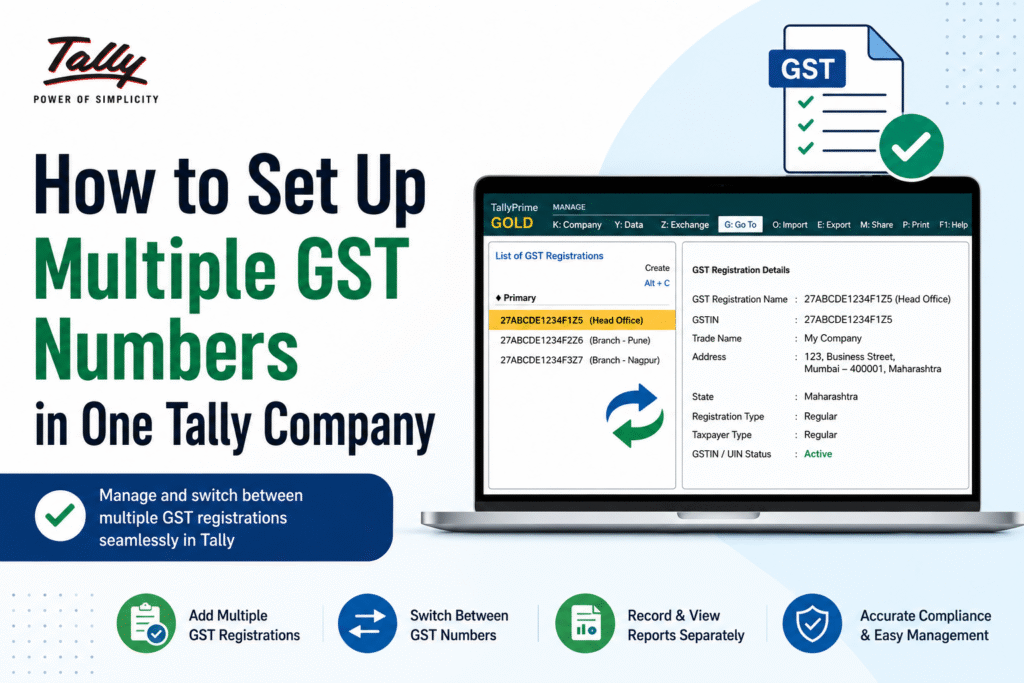
If your business runs in more than one state, you already know the pain — different GST numbers, different invoices, but one single Tally company to manage it all. The good news? Tally Prime makes this possible without creating separate companies for each GSTIN.
This guide walks you through the entire setup in plain, simple language.
First, Let’s Understand Why You Need This
Every state where your business operates requires a separate GSTIN (GST Identification Number). For example, if your head office is in Delhi and you have a branch in Mumbai, you will have two different GSTINs — one for each state.
Without proper setup, Tally will put the wrong GSTIN on invoices or mix up your GST returns. That creates compliance headaches. Setting this up correctly from the start saves you from all of that.
Real Example:
Sharma Traders Pvt. Ltd. has its main office in Delhi and a warehouse in Pune. They have two GSTINs:
- 07AAAAA0000A1ZB — Delhi (Head Office)
- 27AAAAA0000A1ZC — Pune (Warehouse)
They want to run both from a single Tally company. Here is how they do it.
What You Need Before Starting
Before you touch any settings in Tally, keep these things ready:
- Tally Prime Release 2.0 or higher (older versions do not support this feature)
- GST must already be enabled in your company settings
- All GSTIN numbers with their registration certificates
- The states for each GSTIN clearly noted
Step-by-Step Setup in Tally Prime
Step 1 — Enable GST in Company Features
Go to: Gateway of Tally → Press F11 → Enable GST → Set it to Yes
Make sure you enter your primary GSTIN here. This will be your default GST number (usually the head office).
Step 2 — Create a Godown or Branch for Each Location
In Tally, each location (branch, warehouse, office) is called a Godown. You will assign a separate GSTIN to each godown.
Go to: Gateway of Tally → Create → Godown
Create one godown for each location that has its own GSTIN. For Sharma Traders, that means one godown for Delhi and one for Pune.
Step 3 — Assign GSTIN to Each Godown
Once the godown is created, open it and look for the GST Details section. Enter the GSTIN that belongs to that location. Save it.
Now Tally knows — whenever a transaction happens from the Pune godown, use the Pune GSTIN. Simple as that.
Step 4 — Link the Right Godown While Creating Vouchers
When you create a sales or purchase voucher, Tally will ask you which godown the transaction belongs to. Select the correct one, and the GSTIN will automatically appear on the invoice.
No manual switching. No copy-pasting GSTIN numbers. Tally handles it automatically.
GSTIN Setup at a Glance
| Location | State | GSTIN | Godown Name in Tally |
|---|---|---|---|
| Head Office | Delhi | 07AAAAA0000A1ZB | Delhi-HO |
| Warehouse | Pune, Maharashtra | 27AAAAA0000A1ZC | Pune-WH |
This table is exactly how you should plan your setup before opening Tally. One row per location, one GSTIN per row.
How It Looks on an Invoice?
Let’s say Sharma Traders sells goods from their Pune warehouse to a customer in Mumbai.
When they create the sales voucher and select the Pune-WH godown, Tally automatically prints the Pune GSTIN (27AAAAA0000A1ZC) on the invoice. The taxes calculated will be Maharashtra SGST + CGST or IGST, depending on the buyer’s state.
If the same sale had been made from the Delhi office, the Delhi GSTIN would appear on the invoice instead — automatically, without any extra effort.
GST Return Filing — What Changes?
Each GSTIN files its own GSTR-1, GSTR-3B, and other returns separately. Tally understands this too.
When you go to GST Reports in Tally, you can filter by godown or GSTIN. This means you get a clean, separate data set for each registration — ready to file without mixing up figures.
| GST Return | Delhi GSTIN | Pune GSTIN | Filed Separately? |
|---|---|---|---|
| GSTR-1 | Based on Delhi sales | Based on Pune sales | Yes |
| GSTR-3B | Delhi input/output tax | Pune input/output tax | Yes |
| GSTR-2B Reconciliation | Delhi purchases | Pune purchases | Yes |
Common Mistakes to Avoid
Selecting the wrong godown on a voucher is the most common error. Once you post a voucher with the wrong godown, the GSTIN on that invoice is wrong. Always double-check the godown field before saving any sales or purchase entry.
Another mistake is entering the GSTIN in the godown with a typo. Tally does basic format validation, but it cannot catch a valid-looking but incorrect GSTIN. Match it character by character with your GST certificate.
Some users also forget to create the correct state-wise tax ledgers (SGST, CGST, IGST) for each state. Each state needs its own tax ledgers. Do not share a single CGST ledger across multiple states — it will mess up your return data.
Frequently Asked Questions
Q. Can I add more than two GSTINs in one Tally company?
Yes. Tally Prime does not restrict the number of GSTINs. You can create as many godowns as you have registrations and assign a unique GSTIN to each one.
Q. Will my existing data get affected when I set this up?
Old vouchers already posted will not change. Only new vouchers created after the godown-GSTIN setup will carry the assigned GSTIN. For old entries, you may need to edit them manually if required.
Q. What if a transaction involves two GSTINs — for example, a stock transfer between branches?
A stock transfer between two of your own GSTINs is treated as a supply under GST. You need to generate an invoice from the sending branch (with its GSTIN) to the receiving branch (with its GSTIN). Tally handles this through branch transfer vouchers.
Q. Do I need separate user logins for each GSTIN in Tally?
No. All GSTINs are managed under one Tally company and one login. You simply select the correct godown during voucher entry.
Q. Can I print the correct GSTIN automatically on invoices without editing each one?
Yes, that is the whole point of this setup. Once the godown is linked to a GSTIN, Tally pulls it automatically on every invoice created from that godown.
Q. What happens if I do not set this up and just use one GSTIN for all transactions?
Your invoices will show the wrong GSTIN for transactions from other states. This can lead to mismatches in your buyer’s GSTR-2B, rejected input tax credit claims, and notices from the GST department. It is not worth the risk.
Final Thoughts
Setting up multiple GSTINs in one Tally company is not complicated once you understand the godown-based logic. Plan your locations on paper first, create the godowns in Tally, assign the GSTINs, and from that point onward, Tally does the heavy lifting on every invoice and return.
If your business is growing across states, get this right early. It protects your compliance, your buyers’ ITC claims, and your own peace of mind.
Discover more from
Subscribe to get the latest posts sent to your email.