
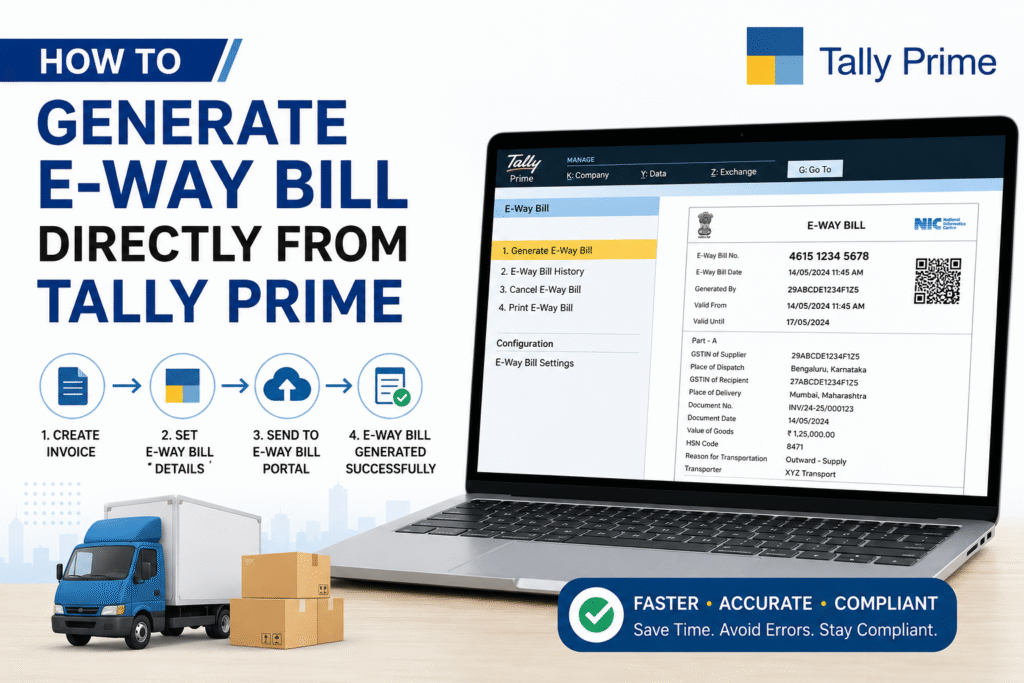
If you move goods worth more than Rs. 50,000 across state lines or even within a state, an E-Way Bill is not optional — it is mandatory under GST law. The good news is that TallyPrime lets you generate E-Way Bills without ever leaving the software. No separate portal login, no double data entry.
Here is a step-by-step breakdown of how to do it right.
What Is an E-Way Bill and Why Does It Matter
An E-Way Bill is an electronic document required under GST for the movement of goods. It contains details of the consignment — what is being moved, from where, to where, and by which vehicle. Generating it incorrectly or late can attract penalties, and missing one during a transit check can result in detention of goods.
TallyPrime integrates directly with the NIC E-Way Bill portal, which means your invoice data flows straight into the bill generation process.
Prerequisites Before You Begin
Before generating an E-Way Bill from TallyPrime, make sure these are in place:
- Your business is registered on the E-Way Bill portal at ewaybillgst.gov.in
- GST credentials are active and your GSTIN is correctly entered in TallyPrime
- TallyPrime is updated to a version that supports E-Way Bill integration (Release 2.0 or above recommended)
- Transporter details and vehicle numbers are available at the time of entry
- Your internet connection is stable during submission
Step-by-Step: Generating an E-Way Bill from TallyPrime
Step 1 — Enable E-Way Bill in TallyPrime
Go to Gateway of Tally, then press F11 (Features), and navigate to GST Details. Enable the option “E-Way Bill Applicable” and set the threshold limit as applicable to your state.
Step 2 — Configure GST and E-Way Bill Settings
Under Company GST Details, enter your GSTIN correctly. Then go to E-Way Bill Settings and enable auto-generation if you want bills created at the point of voucher saving. You can also choose manual generation if you prefer to review before submission.
Step 3 — Create a Sales Voucher (Invoice)
Record your sales entry as usual — party name, stock items, quantities, rates, and applicable GST. TallyPrime will prompt you to enter transporter details such as transporter ID, vehicle number, and mode of transport (road, rail, air, ship) when the invoice value crosses the threshold.
Step 4 — Submit to the E-Way Bill Portal
Once the invoice is saved, select it from the voucher list and use the option “Generate E-Way Bill.” TallyPrime will connect to the NIC portal in real time and submit the data. Upon successful generation, a 12-digit E-Way Bill Number (EBN) is returned and auto-attached to your voucher.
Step 5 — Print or Share the E-Way Bill
You can print the E-Way Bill directly from TallyPrime along with the invoice. The EBN appears on the printout, which the transporter or driver must carry during transit.
E-Way Bill Field Reference Table
| Field | Where to Enter in TallyPrime | Mandatory |
|---|---|---|
| GSTIN of Supplier | Company master / GST Details | Yes |
| GSTIN of Recipient | Party ledger / GST Details | Yes |
| Invoice Number & Date | Sales voucher | Yes |
| HSN Code | Stock item master | Yes |
| Transporter ID or Name | Voucher entry / Transport Details | Yes |
| Vehicle Number | Voucher entry / Transport Details | Yes (Road) |
| Mode of Transport | Voucher entry / Transport Details | Yes |
| Distance (in KM) | Voucher entry / Transport Details | Yes |
When Auto-Generation Works Best?
Auto-generation is ideal when your business dispatches goods in bulk daily and does not need a review layer before submission. Manual generation suits businesses where the transporter details are confirmed only after invoicing. Both modes are available in TallyPrime, and you can switch based on your workflow.
Common Errors and How to Fix Them:
Authentication failure usually means your E-Way Bill portal credentials have not been entered or have expired. Go to TallyPrime GST settings and re-enter them. If you see a mismatch error, check that the GSTIN in the party ledger matches exactly what is registered on the portal. For distance errors, enter the approximate road distance in kilometres between the source and destination PIN codes.
Frequently Asked Questions:
Q. Can I generate an E-Way Bill for purchase transactions in TallyPrime?
Yes. TallyPrime supports E-Way Bill generation for both sales and purchase vouchers, as well as delivery notes.
Q. What happens if I generate an E-Way Bill with an incorrect vehicle number?
You can update the vehicle number on the E-Way Bill portal or through TallyPrime’s E-Way Bill management screen before the bill expires. The rest of the details cannot be edited once generated — you would need to cancel and re-generate.
Q. Is there a validity period for an E-Way Bill?
Yes. For regular vehicles, validity is one day per 200 kilometres. For over-dimensional cargo, it is one day per 20 kilometres. TallyPrime shows the expiry date on the generated bill.
Q. Can I cancel an E-Way Bill from TallyPrime directly?
Yes. Go to the E-Way Bill management section in TallyPrime, select the bill, and use the Cancel option. Cancellation is only possible within 24 hours of generation, provided the bill has not been verified in transit.
Q. Do I need a separate E-Way Bill for each invoice?
Generally, yes — one E-Way Bill per invoice. However, if multiple invoices are being transported in one vehicle to the same recipient, a consolidated E-Way Bill can be generated.
Q. What if my TallyPrime is not connecting to the E-Way Bill portal?
Check your internet connection first. Then verify that the NIC portal is not under maintenance. Also confirm that your TallyPrime version is updated and that the GST credentials entered are correct.
Q. Is E-Way Bill required for goods moved within the same state?
It depends on the state. Several states have made intra-state E-Way Bills mandatory for goods above Rs. 50,000. TallyPrime allows you to set state-specific thresholds in the company GST configuration.
Final Word
Generating E-Way Bills directly from TallyPrime saves time, reduces errors, and keeps your compliance in one place. Once configured correctly, the process becomes part of your normal invoicing workflow — no extra steps, no separate portal logins.
For more guides on TallyPrime, GST compliance, and accounting software tips, stay with BizWithTech.
Discover more from
Subscribe to get the latest posts sent to your email.