
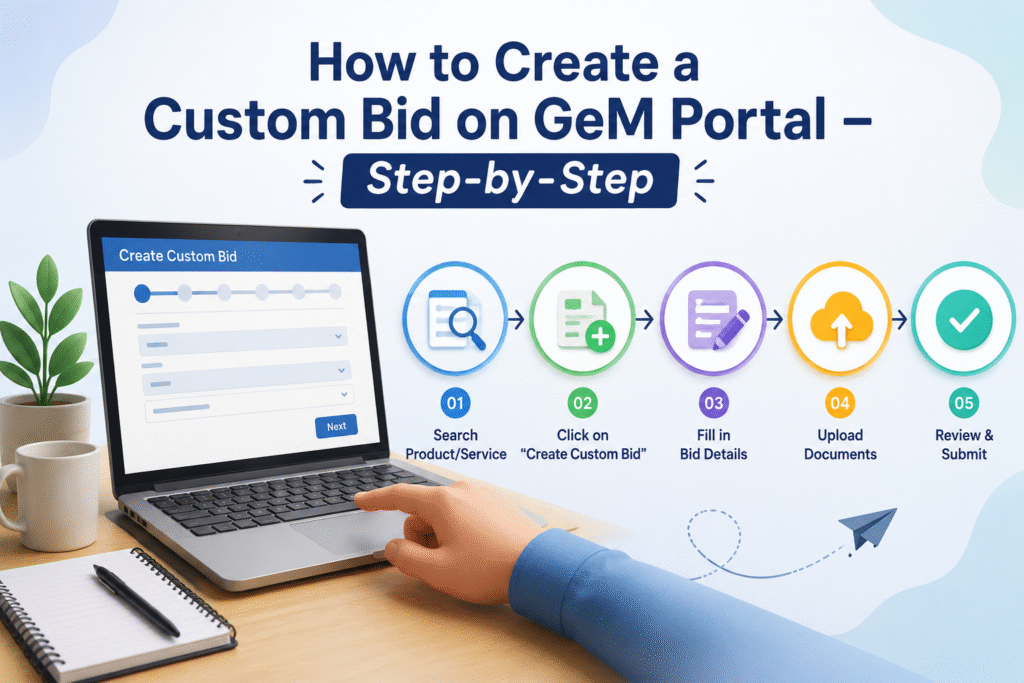
If you are a seller registered on the Government e-Marketplace (GeM) portal, you already know that winning government contracts is not just about listing your products. One of the most powerful but underused features on GeM is the Custom Bid option. Google search trends and GeM’s official documentation now confirm that sellers who understand how to use Custom Bids are winning more contracts than those who rely solely on standard product listings.
This guide walks you through exactly what a Custom Bid is, why it matters, and how to create one on the GeM portal from start to finish.
What Is a Custom Bid on GeM Portal?
A Custom Bid on GeM is a seller-initiated offer submitted against a specific buyer requirement. When a government buyer posts a demand for goods or services that does not exactly match existing catalog listings, they raise a bid or custom requirement. Sellers can then respond with a tailored proposal, including pricing, delivery timelines, and specifications.
This feature is used across categories including IT equipment, office supplies, services, and specialized machinery. It gives sellers the flexibility to compete beyond the standard catalog model.
Why Custom Bids Matter for GeM Sellers
Standard listings work well for commodity products, but many government buyers have unique or bulk requirements. Custom Bids allow sellers to address those requirements directly. They also open doors for sellers who may not have a catalog listing for every specification a buyer demands.
More importantly, GeM has been pushing Custom Bids as a mechanism to improve procurement transparency and bring in competitive pricing. Google search data reflects a significant rise in queries around this feature, which signals that more buyers and sellers are now actively using it.
Eligibility to Submit a Custom Bid
Before you begin, confirm the following:
- Your seller account on GeM must be active and verified.
- Your business profile must be complete with valid GSTIN, Udyam registration (if applicable), and bank account details.
- The product or service category under which the bid falls must be mapped to your profile.
- Your account must not have any active compliance flags or penalties.
Step-by-Step Process to Create a Custom Bid on GeM Portal
Step 1: Log in to Your GeM Seller Account
Go to gem.gov.in and log in with your registered credentials. Use your Seller ID and password. Complete OTP verification if prompted.
Step 2: Navigate to the Bids Section
From the seller dashboard, locate the menu bar at the top. Click on “Bids” and then select “Custom Bids” from the dropdown. This section lists all active buyer requirements that are open for seller responses.
Step 3: Search for Relevant Bid Opportunities
Use filters such as product category, state, ministry, and bid closing date to narrow down requirements that match your business. Read each bid document carefully before deciding to participate.
Step 4: Click on “Participate” Against the Bid
Once you identify a relevant custom bid, click the “Participate” or “View Details” button. Review all terms including quantity, delivery location, delivery timeline, and special technical requirements mentioned by the buyer.
Step 5: Fill in the Bid Participation Form
Complete the form with the following information:
- Unit price per item (exclusive of taxes)
- GST percentage applicable
- Total bid amount
- Delivery period in days
- Warranty terms (if applicable)
- Supporting documents such as product brochures, compliance certificates, or OEM authorization letters
Step 6: Upload Required Documents
Attach all mandatory documents as specified in the bid. File formats are usually PDF or JPG. Keep file sizes within the portal’s specified limits. Missing documents lead to automatic disqualification.
Step 7: Review Your Bid Before Submission
GeM does not allow editing after submission in most cases. Double-check your pricing, GST figures, delivery timelines, and document uploads before proceeding.
Step 8: Submit the Bid
Click the “Submit” button. You will receive a confirmation message and a bid reference number. Save this for tracking purposes.
Step 9: Track Bid Status
Go to “My Bids” under the Bids section to monitor the status of your submitted custom bid. Statuses typically include Submitted, Under Evaluation, Awarded, or Rejected.
Key Parameters Compared: Standard Listing vs Custom Bid
| Parameter | Standard Catalog Listing | Custom Bid |
|---|---|---|
| Initiated by | Seller | Buyer (in response to requirement) |
| Flexibility in pricing | Fixed or range-based | Fully negotiable per bid |
| Scope | General availability | Specific to buyer’s requirement |
| Documents required | Basic product specs | Detailed compliance & technical docs |
| Competition | Open marketplace | Selective, bid-based |
| Delivery terms | Standard | Custom per order |
| Suitable for | Commodity products | Specialized or bulk requirements |
Common Mistakes to Avoid
Sellers frequently lose custom bids not because of pricing but because of avoidable errors. The most common issues are submitting incomplete documentation, misreading the delivery timeline, entering incorrect GST rates, and failing to verify that the product specification matches the buyer’s stated requirement.
Another common mistake is not checking the bid closing time. GeM operates on IST and bids close at a precise timestamp. Submitting even a few minutes late means automatic disqualification.
Tips to Improve Your Chances of Winning
Pricing competitively is necessary, but it is not the only factor. GeM buyers evaluate sellers on past performance ratings, delivery track record, and compliance history. Maintaining a strong seller rating on the portal significantly improves your bid evaluation score.
Also, read the bid document more than once. Government requirements often contain embedded technical specifications in annexures that sellers miss when reading only the main form. Aligning your bid exactly to what is asked, rather than submitting a generic offer, makes a measurable difference.
Frequently Asked Questions
Q1. Can any GeM seller participate in Custom Bids? Yes, any seller with an active and verified GeM account can participate in custom bids, provided their category mapping is in place and their compliance record is clean.
Q2. Is there a fee to submit a Custom Bid on GeM? No. Participating in custom bids on GeM is free for registered sellers. There are no participation charges or listing fees for bid submissions.
Q3. Can I edit a Custom Bid after submission? In most cases, GeM does not allow editing once a bid is submitted. If an amendment is needed, you may need to withdraw and resubmit before the bid closing time, depending on the portal’s current settings for that bid.
Q4. How long does bid evaluation take on GeM? Evaluation timelines vary by buyer and order size. Small bids may be evaluated within a few days, while larger or more complex procurement bids can take several weeks.
Q5. What happens if my Custom Bid is rejected? You will receive a status update in the “My Bids” section. GeM may or may not provide a specific rejection reason. You are free to participate in other bids without any penalty for a rejected bid.
Q6. Does a lower price always win a Custom Bid? Not necessarily. While L1 (lowest price) is a key criterion in many GeM procurements, buyer requirements sometimes include technical qualifications, delivery capability, and seller rating as evaluation factors alongside price.
Q7. Can I submit Custom Bids for services, not just products? Yes. GeM supports custom bids for services including IT services, manpower, consultancy, and facility management, in addition to physical goods.
Final Word
Custom Bids on the GeM portal represent a significant opportunity for sellers who take the time to understand the process. With the government’s ongoing push toward digital procurement and the confirmed rise in buyer-initiated custom requirements, this is not a feature to ignore. The steps outlined above are based on the current GeM portal workflow and reflect how active sellers are successfully participating in and winning custom bids.
For more guides on GeM seller strategies, procurement processes, and digital business tools, keep following BizWithTech.
Discover more from
Subscribe to get the latest posts sent to your email.