
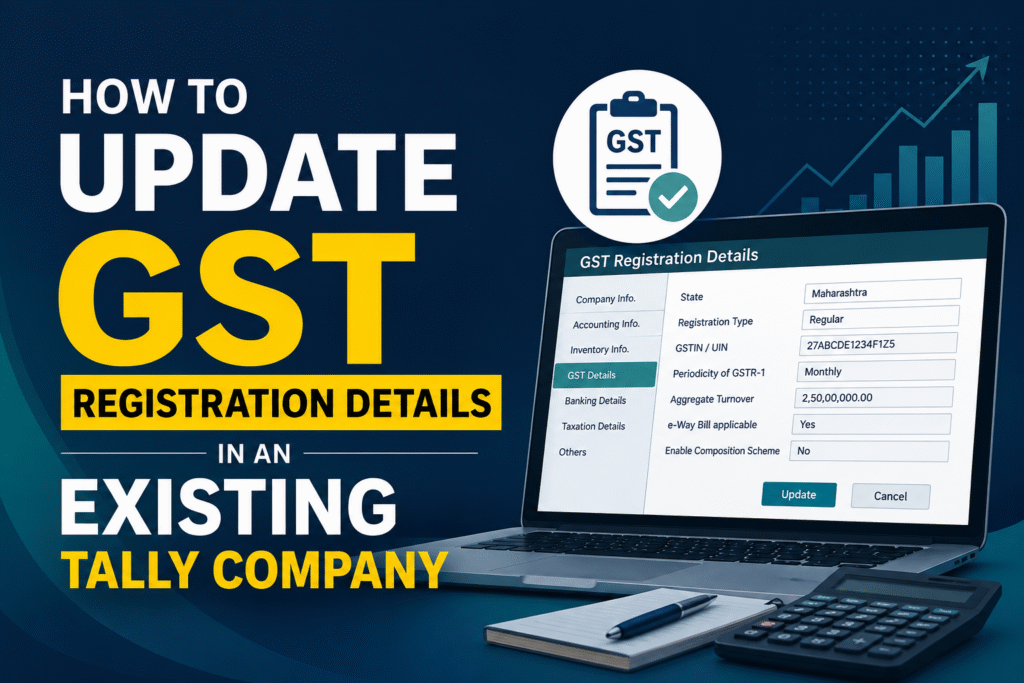
When your business details change — a new address, an updated trade name, or a revised GSTIN — your Tally company configuration must reflect those changes too. Outdated GST details lead to incorrect invoices, rejected e-way bills, and mismatches during GSTR filings. This guide walks you through exactly how to update GST registration details in an existing Tally company, step by step.
Why Keeping GST Details Updated in Tally Matters?
Tally pulls your GSTIN, legal name, state, and registration type directly into every tax invoice you generate. If these details are wrong, every invoice carries incorrect information — which can trigger notices from the GST department and create reconciliation headaches during return filing. It takes less than five minutes to fix, and doing it right the first time saves significant compliance trouble later.
Details You Can Update in Tally’s GST Configuration
| Field | Where It Appears in Tally | Impact If Incorrect |
|---|---|---|
| GSTIN / UIN | Tax invoices, e-way bills, GSTR exports | Invalid invoice, portal rejection |
| Legal / Trade Name | Invoice header, return filings | Name mismatch on GST portal |
| State of Registration | IGST / CGST / SGST tax split | Wrong tax type applied on transactions |
| Registration Type | Tax applicability rules | Incorrect tax calculation on sales |
| Composition Scheme Flag | Invoice type and return format | Wrong return filed (GSTR-1 vs CMP-08) |
| E-Way Bill Applicable | E-way bill generation | E-way bills not generated when required |
Step-by-Step: Updating GST Details in Tally Prime
Step 1 — Open your Tally company
Launch Tally Prime and select the company whose GST details need to be updated. Make sure you are logged in with credentials that have company alteration rights.
Step 2 — Go to Company Features
From the Gateway of Tally, press F11 (Features) or navigate to Company > Features. This opens the Company Features screen where all statutory settings are controlled.
Step 3 — Open Statutory & Taxation settings
Under the Features screen, select Statutory & Taxation. You will see the option “Enable Goods and Services Tax (GST)” — ensure it is set to Yes.
Step 4 — Enter the GST Details screen
Once GST is enabled, a GST Details sub-screen becomes accessible. Navigate into it. This is where all your company-level GST configuration lives.
Step 5 — Update the required fields
Edit the fields that have changed — GSTIN, state, registration type, trade name, e-way bill applicability, or composition scheme status. Always refer to your GST registration certificate on the government portal for accurate values before making changes.
Step 6 — Save and verify
Press Ctrl + A to accept and save the changes. Generate a sample sales invoice to confirm the updated GSTIN and company name appear correctly on the printout.
Updating GST Details in Tally ERP 9
If you are using Tally ERP 9, the path is slightly different. Go to Gateway of Tally > F11: Features > Statutory & Taxation. Set “Enable GST” to Yes, then click on the GST Details option that appears. The fields available are the same as in Tally Prime — edit and save using Ctrl + A.
If the GST Details section does not appear, check whether your Tally version supports your state’s GST rules. Updating Tally to the latest release via Help > Update often resolves this.
Things to Check After Updating
After saving your new GST details, a quick verification pass prevents future problems. Open a recent purchase ledger and confirm the state-of-supply logic reflects the corrected state. Check your HSN/SAC masters to ensure GST rates are still linked correctly. If you file GSTR-1 directly from Tally, run a test export and match the GSTIN on the JSON file against the GST portal before your next filing date.
Frequently Asked Questions
Q. Can I update the GSTIN without losing past transaction data?
Yes. Changing the GSTIN in company features does not alter historical vouchers. Past transactions retain the details at the time of entry. Only new and edited vouchers will reflect the updated GSTIN.
Q. What if my state changes because the business relocated?
Update the state field in GST Details to the new state. Also review all your existing ledgers — supplier and customer accounts may need their state updated too, since the wrong state affects IGST vs CGST/SGST calculation on every transaction.
Q. I switched from regular registration to composition scheme. How do I reflect this in Tally?
In the GST Details screen, change the Registration Type to “Composition” and set the applicable composition rate. Tally will then apply composite tax rules on new invoices. Ensure you also update the applicable period start date so the change takes effect from the correct date.
Q. The GST Details option is greyed out. What should I do?
This usually means GST is not enabled under Statutory & Taxation features. Go to F11 > Statutory & Taxation, set “Enable Goods and Services Tax (GST)” to Yes, and the GST Details field will become active.
Q. Do I need to update GST details in each ledger separately after changing company-level settings? Company-level GST settings apply to your own firm’s details on invoices. Ledger-level GST details for customers and suppliers are separate and must be updated individually if those parties’ GSTINs or states have changed.
Q. How often should I verify my GST details in Tally?
A good practice is to verify at the start of each financial year and immediately after any change communicated by the GST department — such as an amendment in registration, addition of a new place of business, or change in authorised signatory.
Discover more from
Subscribe to get the latest posts sent to your email.