
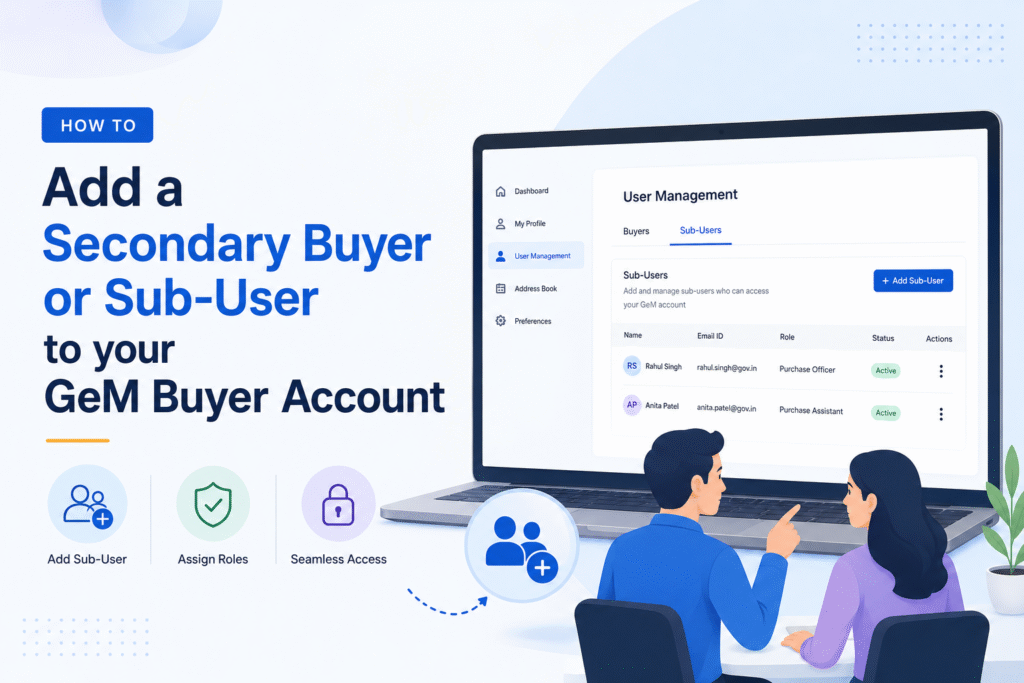
The Government e-Marketplace (GeM) allows a primary buyer to add secondary buyers, also called sub-users, to their account. This feature is designed for organizations where procurement tasks are handled by multiple officials or departments. A secondary buyer can place orders, raise bids, and manage procurement activities on behalf of the primary buyer, within the permissions granted to them.
Understanding this feature saves time and eliminates the need for multiple officials to share a single login, which is both a security risk and a compliance issue.
Who Can Be Added as a Secondary Buyer?
Before adding a sub-user, the following conditions must be met:
The person being added must be a government employee registered on the PFMS (Public Financial Management System) or must have a valid Aadhaar-linked mobile number for OTP verification. The primary buyer must hold an active GeM buyer account with full administrative access. The secondary buyer’s designation and department must match the records in the organization’s official database.
Step-by-Step Process to Add a Sub-User
Step 1 — Log in to your GeM Buyer Account
Visit gem.gov.in and sign in using your primary buyer credentials. Ensure you are logging in as a Buyer and not as a Seller or Service Provider.
Step 2 — Go to User Management
After logging in, navigate to the dashboard. Look for the “My Account” or “Profile” section in the top-right corner. From the dropdown, select “User Management” or “Manage Secondary Users,” depending on your dashboard version.
Step 3 — Click on “Add New User”
Inside the User Management section, you will find the option to add a new sub-user. Click on it to open the registration form for the secondary buyer.
Step 4 — Fill in the Sub-User Details
Enter the required details for the secondary buyer. This includes name, designation, employee ID, department, official email address, and mobile number linked to Aadhaar. Accuracy is critical here — any mismatch with government records will result in rejection.
Step 5 — Assign Roles and Permissions
GeM allows you to define the scope of access for each sub-user. You can restrict or enable functions such as placing orders, managing bids, viewing reports, or approving consignments. Assign roles according to the official’s responsibilities.
Step 6 — Submit and Verify
Once all details are filled in, submit the form. The sub-user will receive an OTP or verification link on their registered mobile or email. They must complete the verification to activate their access.
Step 7 — Confirmation
After successful verification, the secondary buyer’s account becomes active and linked to the primary buyer’s organization account on GeM.
Roles and Permissions: What a Secondary Buyer Can and Cannot Do
| Feature / Action | Primary Buyer | Secondary Buyer |
|---|---|---|
| Place orders | Yes | Yes (if permitted) |
| Create bids and RA | Yes | Yes (if permitted) |
| Approve consignments | Yes | Yes (if permitted) |
| Add or remove sub-users | Yes | No |
| Access financial reports | Yes | Limited |
| Modify organization profile | Yes | No |
| View order history | Yes | Yes |
| Generate CRAC reports | Yes | No |
Common Mistakes to Avoid
Not cross-checking the sub-user’s Aadhaar-linked mobile before submission leads to failed OTP verification. Assigning excessive permissions to sub-users without reviewing their role can create compliance issues during audits. Using a personal email instead of an official government email ID will cause the registration to fail. Leaving unverified sub-user requests pending for too long results in their automatic expiry on the portal.
Why This Feature Matters for Government Procurement
Large departments and ministries deal with high-volume procurement across multiple categories. A single primary buyer managing everything creates bottlenecks and slows down the procurement cycle. By adding trained sub-users with defined roles, organizations can distribute the workload, maintain audit trails, and ensure faster order processing — all while keeping accountability intact.
GeM’s role-based access model also ensures that sensitive functions like financial approvals or profile modifications remain with the primary buyer, reducing the risk of unauthorized changes.
Frequently Asked Questions
Q1. How many secondary buyers can a primary buyer add on GeM?
There is no fixed universal limit mentioned publicly, but the number of sub-users that can be added generally depends on the organization’s size and the buyer account tier. It is advisable to contact GeM helpdesk for the current limit applicable to your account.
Q2. Can a secondary buyer add another sub-user?
No. Only the primary buyer has the administrative privilege to add or remove sub-users. Secondary buyers do not have access to the User Management section.
Q3. What happens if a secondary buyer leaves the organization?
The primary buyer must immediately deactivate or remove that sub-user from the GeM account through the User Management section. Failing to do so is a security lapse and may cause compliance issues.
Q4. Can a secondary buyer on GeM place orders independently?
Yes, but only within the permissions granted by the primary buyer. If order placement access is not enabled for that sub-user, they cannot place orders independently.
Q5. Is Aadhaar mandatory for a secondary buyer registration?
Aadhaar-linked mobile verification is part of the authentication process. The mobile number used must be the one registered with Aadhaar. Without this, OTP verification will fail.
Q6. Can the primary buyer change the permissions of a secondary buyer later?
Yes. Permissions are not permanent. The primary buyer can revisit the User Management section at any time to update, restrict, or expand the access rights of any sub-user.
Q7. What if the secondary buyer does not receive the verification OTP?
This is usually caused by a mismatch between the entered mobile number and the Aadhaar-linked number, or a network issue. Verify the number entered and re-initiate the verification request. If the issue persists, reach out to GeM support at helpdesk.gem.gov.in.
Discover more from
Subscribe to get the latest posts sent to your email.