
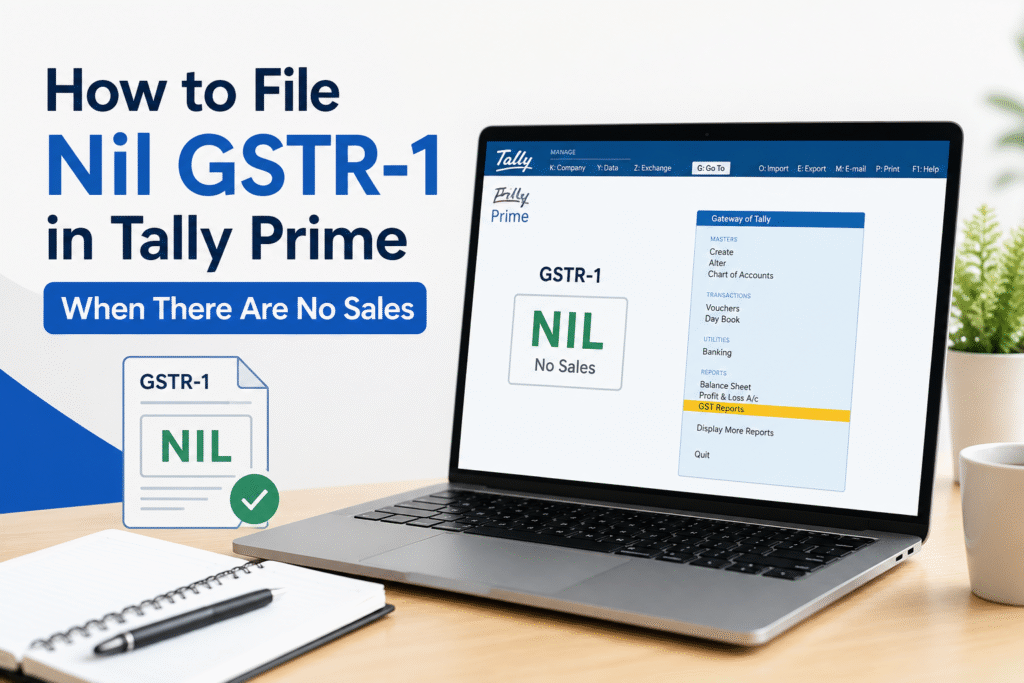
Every GST-registered business must file GSTR-1 each month or quarter — even when there are zero sales. Missing this return, even in a no-transaction period, attracts a late fee of ₹200 per day (₹100 under CGST + ₹100 under SGST). TallyPrime simplifies this process significantly. This guide walks you through filing a Nil GSTR-1 directly through TallyPrime without manual data entry on the GST portal.
What Is a Nil GSTR-1?
A Nil GSTR-1 is a return filed by a taxpayer for a tax period in which there are no outward supplies — meaning no B2B invoices, no B2C sales, no debit notes, no credit notes, and no exports. It simply tells the GST department that your business had no taxable transactions during that period. It is mandatory to file even when there is nothing to report.
Who Needs to File Nil GSTR-1?
Nil GSTR-1 applies to all GST-registered businesses that had no outward supplies in a given period. This includes:
- Businesses registered under regular GST scheme
- Firms that are temporarily inactive or in a lean period
- New businesses that registered mid-year but did not make any sale
- Seasonal businesses with off-season months showing zero sales
Composition dealers are exempt from GSTR-1 and instead file CMP-08 and GSTR-4, so this guide does not apply to them.
Before You Begin: Prerequisites
Make sure the following are in place before starting the filing process in TallyPrime.
| Requirement | Details |
|---|---|
| TallyPrime Version | Release 3.0 or above recommended |
| GST Portal Login | Active credentials for GST portal (GSTIN + password) |
| Return Period | Confirm the month/quarter for which return is due |
| Connected Mode | TallyPrime must be connected to GST portal via Connected Filing |
| No Pending Invoices | Ensure no unaccounted sales vouchers exist for the period |
Step-by-Step: Filing Nil GSTR-1 in TallyPrime
Step 1 — Verify There Are No Sales Entries
Before filing, confirm the return period has zero outward supply transactions.
Go to Gateway of Tally → Display More Reports → Statutory Reports → GST Reports → GSTR-1. Select the filing period. If all tables — B2B, B2C, CDNR, exports — show zero entries, you are clear to file a Nil return.
Step 2 — Open the GSTR-1 Report in TallyPrime
From the Gateway of Tally, navigate to Display More Reports → Statutory Reports → GST Reports → GSTR-1. Select the relevant return period (month or quarter depending on your filing frequency).
Step 3 — Check Return Status
On the GSTR-1 summary screen, TallyPrime shows the current status of the return — whether it is Not Filed, Saved, or Filed. For a nil period, all sections should display zero values.
Step 4 — Connect to GST Portal
Press Alt+Z or click Connect to link TallyPrime with the GST portal. Enter your GSTIN credentials when prompted. TallyPrime uses its connected filing capability to push return data directly to the portal.
Step 5 — Upload or Proceed to File
Since there is no data to upload for a Nil return, TallyPrime will prompt you to proceed directly to filing. Click File GSTR-1. You will see a confirmation screen indicating the return is Nil.
Step 6 — Authenticate with OTP
The GST portal will send a One-Time Password (OTP) to the registered mobile number or email linked to your GSTIN. Enter this OTP in TallyPrime when prompted to authenticate the filing.
Step 7 — Confirm Filing
After OTP verification, TallyPrime confirms the return is filed. The status on the GSTR-1 summary screen changes to Filed. You can download the acknowledgment (ARN) from the GST portal for your records.
Alternative Method: Filing Nil GSTR-1 Directly on GST Portal
If you prefer not to use the connected filing feature, you can file the Nil return manually on the GST portal. Log in to gstin.gov.in, go to Returns → Returns Dashboard, select the period, and click on GSTR-1. Since all tables are empty, click Generate Summary and then proceed to File Return using DSC or EVC.
However, TallyPrime’s connected filing is faster and eliminates the risk of portal navigation errors.
Common Mistakes to Avoid
Businesses often make errors when handling Nil returns. Being aware of these helps you stay compliant without unnecessary stress.
- Do not assume that a zero-sales month means no filing is required — filing is mandatory regardless.
- Do not leave sales vouchers partially entered for the period, as TallyPrime will not treat the return as Nil if any voucher exists.
- Do not file for the wrong period. Verify whether your business is on monthly or quarterly GSTR-1 filing before proceeding.
- Do not ignore the late fee if you have already missed the due date. Pay the fee first and then file.
Late Fee for Not Filing Nil GSTR-1
Even a Nil return attracts a late fee if filed after the due date. The fee is ₹100 per day under CGST and ₹100 per day under SGST, totaling ₹200 per day. The maximum late fee for Nil returns is capped at ₹500 (₹250 CGST + ₹250 SGST) as per the GST council relaxation for Nil filers. Pay this late fee through the GST portal under the Electronic Cash Ledger before attempting to file.
Frequently Asked Questions
Q1. Is it mandatory to file GSTR-1 even if there are no sales?
Yes. Every GST-registered business must file GSTR-1 for every tax period, regardless of whether there were any transactions. Failure to file attracts a late fee even for Nil returns.
Q2. Can I file Nil GSTR-1 directly from TallyPrime without going to the GST portal?
Yes. TallyPrime’s connected filing feature lets you file GSTR-1 — including Nil returns — directly from within the software. You only need your GST portal credentials and OTP access on your registered phone.
Q3. What if I accidentally entered a sales voucher for that period and then deleted it?
TallyPrime will pick up the current state of vouchers. If the voucher is fully deleted and does not appear in the GSTR-1 report, the return can still be filed as Nil. Always verify the GSTR-1 summary screen shows zero before filing.
Q4. Does filing Nil GSTR-1 affect my ITC eligibility for the next month?
No. Filing a Nil GSTR-1 simply indicates zero outward supplies. It does not affect your ability to claim Input Tax Credit on purchases in the same or subsequent periods.
Q5. What is the due date for monthly and quarterly Nil GSTR-1?
For monthly filers, the due date is the 11th of the following month. For quarterly filers (under QRMP scheme), the due date is the 13th of the month following the end of the quarter.
Q6. Can I file Nil GSTR-1 using TallyPrime if I am on the QRMP scheme?
Yes. If you are on the QRMP scheme, you file GSTR-1 quarterly. TallyPrime supports quarterly filing as well. The process remains the same — simply select the correct quarter as the return period.
Q7. Will TallyPrime automatically detect that the return is Nil?
Yes. When you open the GSTR-1 summary for the period and there are no outward supply entries, TallyPrime recognizes it as a Nil return and adjusts the filing workflow accordingly.
Conclusion
Filing Nil GSTR-1 in TallyPrime takes just a few minutes once you understand the process. The key steps are verifying zero transactions for the period, connecting TallyPrime to the GST portal, and authenticating with OTP. Staying regular with Nil filings keeps your GST compliance record clean, avoids late fees, and ensures there are no blocks when you resume active sales. Set a monthly reminder so no return period gets missed, even during slow business months.
Discover more from
Subscribe to get the latest posts sent to your email.


