The Government e-Marketplace (GeM) has transformed the way government buyers procure goods and services in India. For registered buyers, the portal offers a structured way to search, filter, and compare products from thousands of sellers — all under one roof. If you are a government buyer trying to navigate the GeM portal efficiently, this guide will walk you through everything you need to know.
What Is GeM Portal and Who Is a Buyer?
GeM is an online procurement platform launched by the Ministry of Commerce and Industry, Government of India. A “buyer” on GeM refers to any government official authorized to procure goods or services on behalf of their department, ministry, or public sector unit. Buyers must register with valid credentials before accessing procurement features.
Step-by-Step: How to Search for Products on GeM Portal
Step 1 — Log In to Your Buyer Account
Visit gem.gov.in and log in using your registered buyer credentials. Once logged in, you will land on the buyer dashboard, which gives you access to all procurement tools.
Step 2 — Use the Search Bar
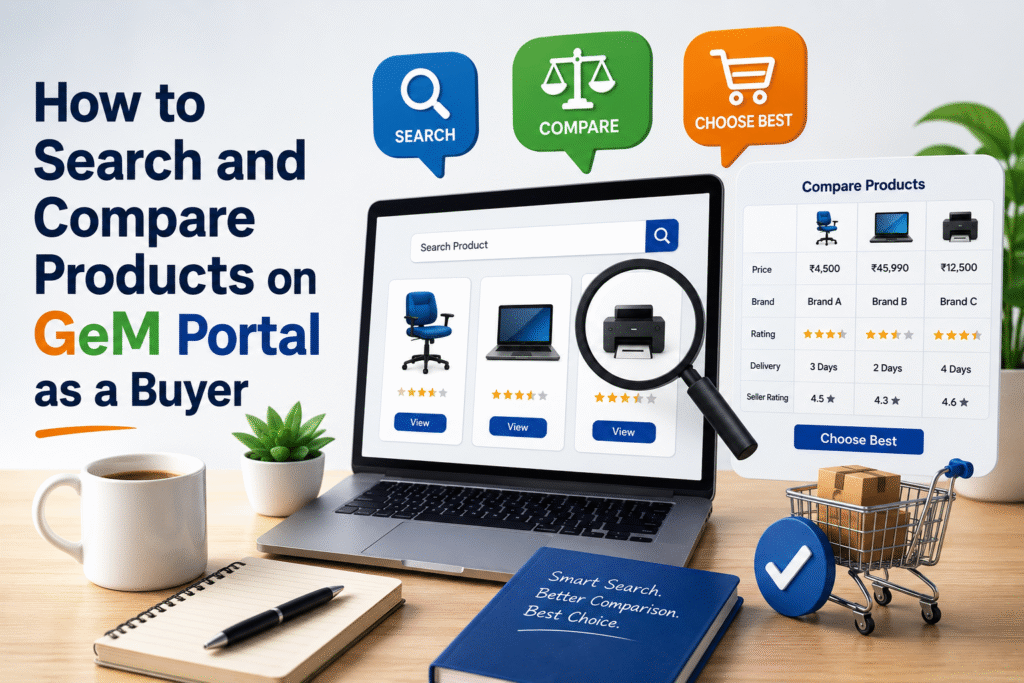
At the top of the portal, you will find a search bar. Enter the name of the product, category, or relevant keyword. GeM supports both general terms (like “office chair”) and specific product codes.
Step 3 — Apply Category Filters
GeM organizes products under categories and sub-categories. After entering a search term, use the left-side filter panel to narrow results by category, product type, brand, or specification. This helps eliminate irrelevant listings quickly.
Step 4 — Use Advanced Filters
Advanced filters allow buyers to refine search results by price range, seller rating, delivery location, OEM status, startup certification, and whether the product meets Make in India norms. Applying these filters ensures compliance with procurement policies.
Step 5 — Review Product Listings
Each product listing on GeM shows the seller name, product specifications, unit price, available quantity, and seller rating. Click on any product to view its detailed specification sheet before shortlisting.
How to Compare Products on GeM Portal?
Once you have shortlisted multiple products, GeM provides a built-in comparison tool.
1. Select Products for Comparison
On the product listing page, check the “Compare” checkbox available on each product card. You can select up to four products at a time for side-by-side comparison.
2. View the Comparison Table
After selecting products, click the “Compare” button. The portal generates a table that shows specifications, price, seller rating, delivery timelines, and warranty details in columns side by side.
3. Evaluate and Shortlist
Review each parameter carefully. Pay attention to specification compliance, price per unit, and seller performance score. Once satisfied, proceed to add the chosen product to your cart or raise a direct purchase order.
Key Parameters to Check While Comparing Products
| Parameter | Why It Matters |
|---|---|
| Unit Price | Determines budget compliance and value for money |
| Seller Rating | Reflects past delivery and quality performance |
| Specification Compliance | Ensures the product meets department requirements |
| Delivery Timeline | Critical for urgent or time-bound procurement |
| Warranty / AMC | Reduces post-purchase maintenance risk |
| OEM / Brand Status | Confirms product authenticity and origin |
| Make in India Badge | Required for certain categories under procurement policy |
Important Tips for Buyers on GeM
Check whether the product carries the “Quality Council of India” mark or any ISI certification before finalizing a purchase. For high-value orders, GeM mandates a minimum number of bids through the bidding or reverse auction route — direct purchase is only allowed within defined financial limits.
Always verify if the seller is an OEM, authorized reseller, or third-party vendor. OEM-listed products carry stronger accountability in case of defects or non-delivery. Also, confirm that the seller’s GSTIN and business credentials are active before raising a purchase order.
For products under the “Startup India” or “Women-led Enterprise” category, GeM provides dedicated filter tags that support inclusive procurement.
Direct Purchase vs. Bidding — When to Use Which
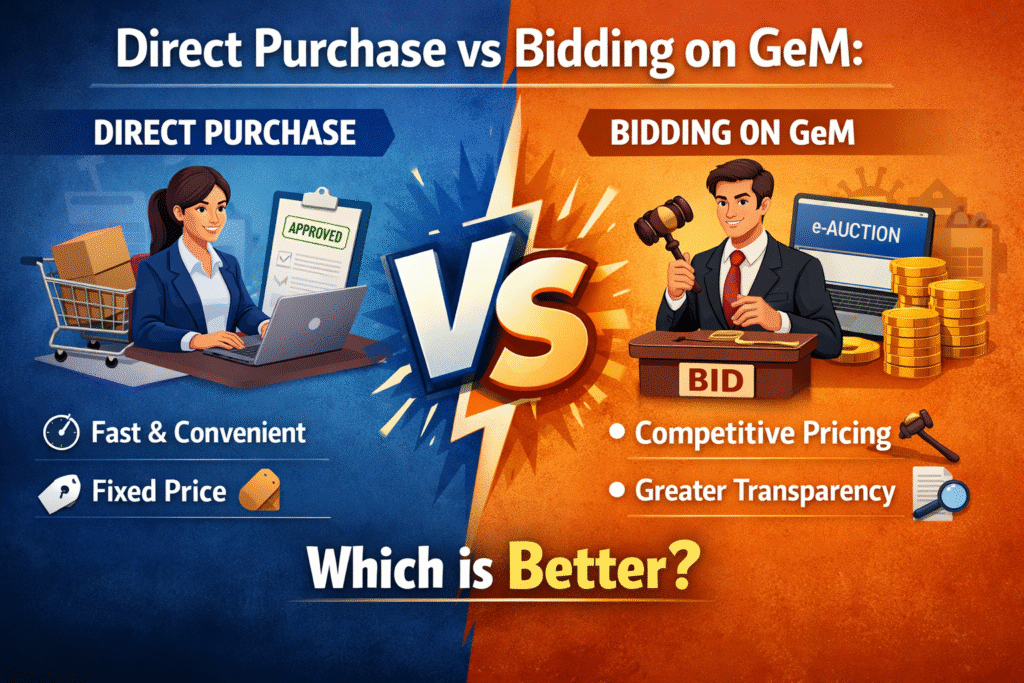
GeM allows two primary procurement routes for buyers. Direct purchase is permitted when the order value falls within the financial limit set by the government (currently up to ₹25,000 per order from any one seller without bidding). For orders above this threshold, buyers must initiate a bid or reverse auction to ensure competitive pricing and transparency.
When comparing products through bidding, the system automatically generates a comparative statement of bids received, making evaluation easier and audit-ready.
Common Mistakes Buyers Should Avoid
Rushing through the comparison without reading full specifications leads to mismatched procurement. Ignoring seller ratings and focusing only on the lowest price often results in poor delivery experience. Buyers should also avoid selecting products that do not carry the required certifications, as this can lead to audit objections.
Another frequent mistake is not verifying the delivery pincode serviceability before placing an order. GeM allows sellers to define serviceable locations, so always confirm your delivery address is covered.
Frequently Asked Questions (FAQs)
Q1. Can a GeM buyer compare products from different categories?
No. The comparison tool on GeM works within the same product category. You cannot compare a laptop with a printer, for example. Both products must belong to the same category and sub-category for the comparison to be valid.
Q2. Is there a limit on how many products I can compare at once?
Yes. GeM currently allows buyers to compare up to four products simultaneously using the built-in comparison tool.
Q3. What is the maximum order value for direct purchase on GeM without bidding?
As per current GeM guidelines, buyers can make direct purchases up to ₹25,000 per order from a single seller without initiating a bid. For higher values, the bidding or reverse auction process is mandatory.
Q4. How can I verify a seller’s authenticity on GeM?
Each seller profile on GeM displays their GSTIN, business type (OEM, reseller, service provider), performance rating, and order fulfillment history. Buyers can click on the seller name to review this information before proceeding.
Q5. What does the Make in India filter do on GeM?
The Make in India filter helps buyers identify products manufactured domestically as per the Public Procurement (Preference to Make in India) Order. Certain categories have mandatory local content requirements, and this filter ensures compliance.
Q6. Can I save a product comparison for future reference?
GeM does not offer a native save-for-later feature for comparisons. However, buyers can take screenshots or export product details manually for internal record-keeping before finalizing a purchase.
Q7. What should I do if a product I need is not listed on GeM?
If a required product is not available on GeM, buyers can raise a demand through the “Custom Bid” or “Service Procurement” route. In some cases, buyers can also request sellers to list the product by raising a new product request with GeM.
Final Thoughts
Searching and comparing products on the GeM portal is straightforward once you understand the filters, procurement routes, and compliance parameters involved. The portal is designed to make government procurement transparent, efficient, and accountable. By following the steps outlined above and using the comparison tool effectively, buyers can make well-informed procurement decisions that stand up to scrutiny.
For more guides on GeM registration, seller onboarding, and procurement compliance, stay tuned to BizWithTech — your go-to resource for government marketplace insights.
Discover more from
Subscribe to get the latest posts sent to your email.