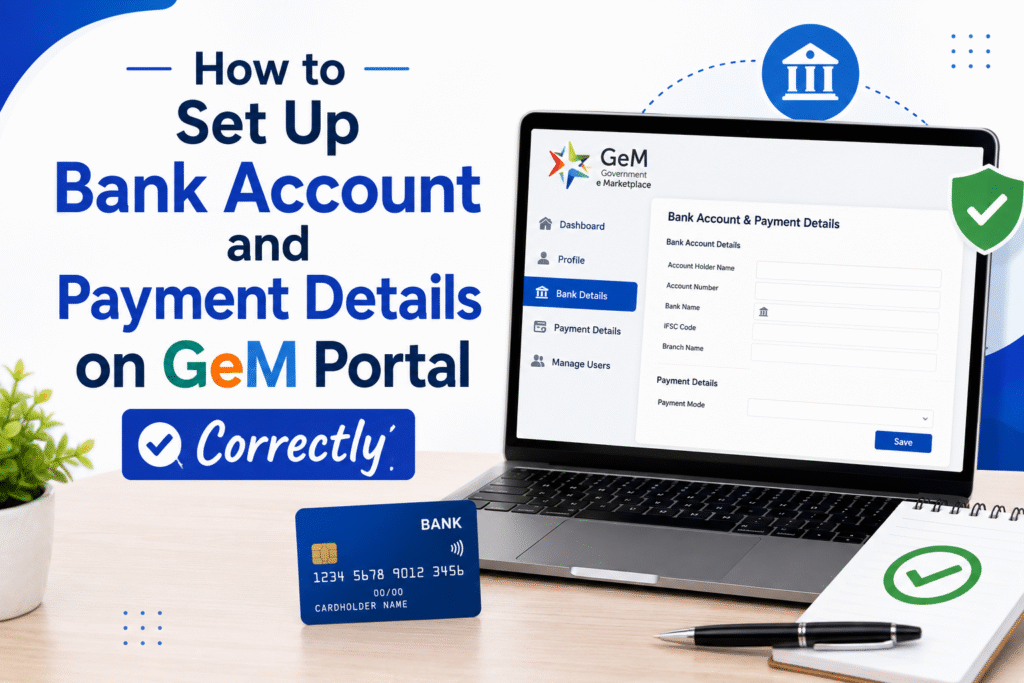
One of the most critical steps after registering on the Government e-Marketplace (GeM) is correctly adding your bank account and payment details. Skipping steps or entering wrong information can delay your payment settlements by weeks. This guide walks you through the exact process, what documents you need, and the common mistakes that trip up first-time sellers.
Why Bank Account Details Matter on GeM?
GeM processes all buyer payments directly to the seller’s registered bank account. If your account details are incorrect or unverified, the payment cycle gets stuck. GeM also uses your bank information to validate your business identity — it must match your PAN or GST records. An error here does not just delay payments; it can also trigger scrutiny from the GeM compliance team.
Prerequisites Before You Begin
Before you open the payment settings, keep the following ready. Incomplete information causes the portal to reject your entry mid-process.
Active savings or current bank account in the name of the business or individual registered on GeM. Cancelled cheque or bank passbook front page as a clear scan or photo. IFSC code of your branch. PAN card of the registered entity. GST certificate if registered under GST. Aadhaar-linked mobile number for OTP verification.
Step-by-Step: Adding Bank Account on GeM Portal
Step 1 — Log in to your GeM Seller Account
Go to gem.gov.in and log in using your registered credentials. If you have two-factor authentication enabled, complete the OTP step on your registered mobile number before proceeding.
Step 2 — Go to Profile Settings
Click on your profile name or icon at the top right corner. From the dropdown, select “My Profile.” On the left sidebar, you will see a section called “Finance Details” or “Bank Account Details” depending on your seller category.
Step 3 — Click on “Add Bank Account”
Inside the Finance Details section, click the “Add New Bank Account” button. The portal will ask you to enter your account number, confirm it once more, and then enter the IFSC code. Do not copy-paste the account number — type it manually both times to avoid errors.
Step 4 — Enter Account Holder Name Exactly as Per Bank Records
The name you enter must match exactly what your bank has on record. Even a minor spelling difference — like “Pvt” versus “Private” — can cause the penny-drop verification to fail. This is the most common reason applications get rejected at this stage.
Step 5 — Upload Supporting Document
Upload a scanned copy of your cancelled cheque or the front page of your passbook. The file must be in PDF or JPG format and under 1 MB. Make sure the account number and name are clearly visible. Blurry or cropped documents will be rejected.
Step 6 — Penny Drop Verification
After submitting, GeM initiates a penny-drop verification where a small amount (usually Re. 1) is deposited into your account to confirm it is active and the details are correct. This takes between a few minutes and 24 hours. You will receive a confirmation message once it is done.
Step 7 — Mark the Account as Primary
If you have added multiple bank accounts, you must mark one as the primary account. All payments from GeM orders will be credited to the primary account only. Go to the list of added accounts and click “Set as Primary.”
Documents Required — Quick Reference Table
| Document | Format Accepted | Max File Size | Purpose |
|---|---|---|---|
| Cancelled Cheque | JPG, PDF | 1 MB | Bank account verification |
| Passbook Front Page | JPG, PDF | 1 MB | Alternative to cheque |
| PAN Card | JPG, PDF | 1 MB | Identity verification |
| GST Certificate | JPG, PDF | 2 MB | Business verification |
| MSME/Udyam Certificate | JPG, PDF | 1 MB | MSME classification proof |
Common Mistakes to Avoid
Entering a personal savings account when the GeM registration is under a company name. The account must match the entity type registered on GeM. Using a bank account that is linked to a different PAN than the one submitted during GeM registration. Uploading a cheque that has been mutilated, overwritten, or where the name and account number are not clearly legible. Closing or changing the bank account after verification without updating it on GeM — this will block all pending payments. Ignoring the penny-drop failure notification, which leads sellers to believe the setup is complete when it is not.
What Happens After Successful Verification?
Once your bank account is verified, GeM reflects the status as “Verified” in the Finance Details section. All future order payments — after the buyer confirms delivery and the payment processing window closes — will be credited to this account. Typically, payment is released within 10 working days of delivery confirmation, subject to any withholding or TDS deductions applicable to your category.
Updating or Changing Bank Account Details Later:
You can add a new bank account at any time by repeating the steps above. However, you cannot delete an account that has pending payments against it. To switch your primary account, simply add the new one, complete verification, and then set it as primary. The old account remains in the system for record purposes.
Frequently Asked Questions
Q1. Can I add a joint bank account on GeM?
Yes, joint accounts are accepted as long as the primary account holder’s name matches the name of the entity registered on GeM. The account number and IFSC must be valid, and penny-drop verification must pass successfully.
Q2.My penny-drop verification has been pending for more than 24 hours. What should I do?
First, check that the account number and IFSC entered are correct. If the details are right, raise a support ticket through the GeM helpdesk at helpdesk.gem.gov.in. Provide your seller ID and the bank account number in the ticket. Avoid submitting multiple requests for the same issue.
Q3.Can a seller have more than one bank account on GeM?
Yes, GeM allows multiple bank accounts to be linked to a single seller profile. However, only the account marked as “Primary” will receive payment credits.
Q4.What if my bank account name and GeM registration name do not match?
The verification will fail. You will need to either update your bank account name with your bank or update the business name on GeM to match. Using a completely different account is not a workaround — it will be rejected at the penny-drop stage.
Q5.Is there a charge for adding or changing bank account details on GeM?
No. GeM does not charge any fee for adding, verifying, or updating bank account information. If any third party claims otherwise, do not pay.
Q6.Can I use a payment wallet or UPI ID instead of a bank account?
No. GeM only supports direct bank account transfers (NEFT/RTGS/IMPS). Wallets and UPI IDs are not accepted as payment destinations for sellers.
Final Note
Getting your bank account setup right on GeM is a one-time process that has long-term consequences. Take the time to double-check every field before submitting. A verified account means faster payments, fewer disputes, and a smoother experience as you grow your presence on the portal.
Discover more from
Subscribe to get the latest posts sent to your email.