
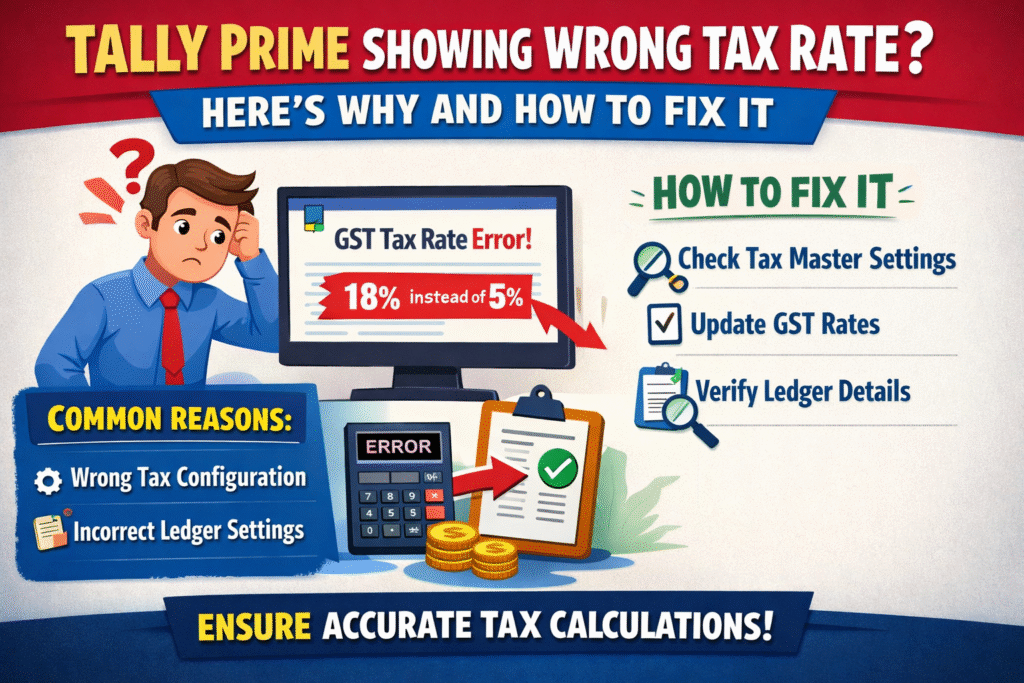
A wrong tax rate on an invoice is not just an accounting error — it can attract GST notices, mismatches in GSTR-1, and headaches during reconciliation. If your Tally Prime is picking up an incorrect GST rate, the problem is almost always traceable to one of a handful of configuration mistakes that are easy to overlook and equally easy to fix.
Why Does Tally Prime Show the Wrong Tax Rate?
Tally Prime calculates GST based on a hierarchy: the tax ledger linked to the stock item or service takes priority, followed by the stock group, and then the GST configuration at the company level. When any one layer in this chain has a mismatched or outdated rate, the invoice picks up the wrong percentage.
The most common culprits are HSN/SAC codes entered incorrectly, GST slabs that were not updated after a rate revision notification, ledger configurations where the tax type is wrong, and voucher-level overrides that silently replace the correct rate. Understanding which layer is causing the problem saves significant time in diagnosis.
Common Causes at a Glance
| Root Cause | Where It Sits in Tally Prime | Effect on Invoice | Fix Required |
|---|---|---|---|
| Incorrect HSN/SAC Code | Stock Item or Service Ledger | Wrong slab applied automatically | Correct HSN and relink GST details |
| Outdated GST Slab | GST Rate Master | Old rate persists on new invoices | Update rate in GST Classification |
| Wrong Tax Ledger Linked | Sales/Purchase Ledger | CGST/SGST/IGST mismatch | Relink correct tax ledger |
| Voucher-Level Override | Individual Transaction | One-off rate override stays saved | Delete or correct voucher override |
| Multiple GST Registrations | Company > GST Details | Wrong GSTIN state tax applied | Map correct GST registration to branch |
| Composite vs Regular Mismatch | Party Ledger Classification | Composition rate applied to regular party | Fix party type in ledger master |
How to Fix Wrong Tax Rate in Tally Prime — Step by Step:
Step 1: Verify the HSN/SAC Code on the Stock Item
Go to Gateway of Tally > Masters > Stock Items. Open the item that appears on the wrong-rate invoice and press F12 for Configuration to ensure GST details are visible. Under the GST Details tab, confirm the HSN code matches the correct classification. Cross-check against the official GST rate schedule published by CBIC if there is any doubt. Set the correct tax rate directly in the stock item, save with Ctrl+A, and regenerate the invoice.
Step 2: Check and Update GST Classifications
Tally Prime uses GST Classifications as a master library of rate groups. If a rate revision happened — say GST on a product moved from 12% to 18% — the Classification master must be updated first. Navigate to Gateway of Tally > Masters > GST Rate > GST Classifications, find the relevant classification, and correct the tax percentage. All items linked to that classification will automatically inherit the updated rate.
Step 3: Inspect the Tax Ledger Configuration
A frequently missed cause is a tax ledger where the “Type of Duty/Tax” is set incorrectly — for example, IGST selected for a local sale, or a custom percentage entered under the ledger that conflicts with the item master. Open each tax ledger under Accounts Info > Ledgers, verify the duty type and percentage, and ensure the GST-related fields match the expected setup.
Quick Diagnostic: Before editing any master, generate the GST Audit report under Display > Statutory Reports > GST > GST Audit. Tally Prime flags rate mismatches directly here, so you can see which transactions are affected before making any changes.
Step 4: Check for Voucher-Level Overrides
Tally Prime allows users to override the tax rate at the voucher level during entry. While this is a useful feature, it can cause a saved transaction to carry a rate different from the master. Open the affected voucher, press Alt+S to view the GST Details, and check whether a manual override is active. Remove or correct it and accept the voucher again.
Step 5: Validate Party Ledger Type for Composition Dealers
If your party is a regular dealer but the ledger is marked as a Composition dealer in Tally Prime, the composition rate will apply to all transactions against that party. Open the party ledger, navigate to the GST Details section, confirm the “Registration Type” is set to Regular, and save. This is a particularly common issue when importing data from older Tally versions.
After the Fix: Amending Incorrect Invoices
Correcting the master is only half the job. Any invoice already issued with the wrong rate must be handled through a credit note and a revised invoice, or through an amendment in GSTR-1 if the return has already been filed. Tally Prime supports GSTR-1 amendment entries natively — use Accounting Vouchers > Credit Note and link it to the original invoice number, then create the corrected sales voucher with the right tax rate.
For invoices within the same return period that have not yet been filed, simply opening and correcting the voucher in Tally Prime is sufficient. The amended figures will flow automatically into GST returns on the next generation.
Frequently Asked Questions
Q1. Why does Tally Prime show 0% GST on some items even though a rate is configured?
This usually happens when the stock item has “Exempt” or “Nil Rated” selected in the GST Details field, overriding the classification rate. Open the item master, check the “Nature of Transaction” and “GST Applicable” fields, and switch from Exempt to Taxable. Also confirm the GST Classification linked to the item is not a nil-rated group.
Q2. Can a wrong tax rate in Tally Prime cause a GSTR-1 mismatch?
Yes, directly. Whatever rate Tally Prime records on the invoice flows into GSTR-1 on filing. If the rate does not match what the buyer sees in GSTR-2B, it creates a reconciliation gap that must be resolved through amendments. Fixing the rate before filing avoids this entirely.
Q3. How do I apply a different GST rate to the same item for different customers?
Tally Prime does not natively support customer-specific tax rates for the same item. The recommended approach is to create separate stock items for each rate scenario or to use the voucher-level override carefully, ensuring it is applied consistently. The voucher override route, however, increases the chance of errors across multiple users.
Q4. After updating the GST classification, old invoices still show the wrong rate. Why?
Tally Prime does not retroactively update saved vouchers when a master is changed. Past transactions retain the rate that was active at the time of entry. Only new invoices created after the master correction will pick up the updated rate. For past invoices, manual correction or credit note entries are required.
Q5. Is there a way to audit all wrongly-taxed invoices at once instead of checking one by one?
Yes. Use the GST Audit feature under Display > Statutory Reports > GST > GST Audit in Tally Prime. It compares the rate applied on each voucher against the rate configured in the master at the time of audit and flags any discrepancy. This is the fastest way to identify the scope of the problem across a large volume of transactions.
Q6. Does this issue occur after a Tally Prime update or data migration?
It can. During version upgrades or data migration from Tally ERP 9, some HSN mappings and GST classifications may not carry over perfectly, especially if custom configurations were in place. After any migration, running the GST Audit report immediately is strongly recommended to catch any mapping issues before live transactions are entered.
Discover more from
Subscribe to get the latest posts sent to your email.